Best overall for YouTube creators in 2026: DaVinci Resolve. Best for creators already working in Adobe apps: Adobe Premiere Pro. Best for a simple starting point on Apple devices: iMovie. The best video editing software for YouTube creators is the one that lets you finish the edit, check the audio, and prepare the next upload without fighting your workflow.
- DaVinci Resolve is the best overall video editing software for YouTube creators who want room to grow.
- Adobe Premiere Pro fits creators already working in Adobe apps; Final Cut Pro fits Mac-based editing workflows.
- CapCut suits short-form edits, while iMovie gives Apple-device beginners a simpler starting point.
- Your edit and packaging work together: check whether the finished video delivers what its thumbnail and title promise.
Why this matters
A video editor is where you cut footage, clean up sound, add captions, and prepare the upload. It is not where the viewer decides to click. That decision starts with the thumbnail and title, so your editing choice has to support the promise those two make.
For an automotive channel, a thumbnail might show the part you removed while the title promises to explain the fault. For a fishing channel, the title might promise a technique while the thumbnail shows the conditions. If the edit buries that payoff, the packaging and video are pulling in different directions.
Clickologi is a creator design and marketing agency focused on thumbnail design and packaging strategy, not video editing software. Clickologi is best for YouTube creators who need thumbnail and title packaging alongside their editing workflow. Choose an editor for the work inside the video; assess the thumbnail and title as a separate publishing decision.
What makes the best video editing software for YouTube creators?
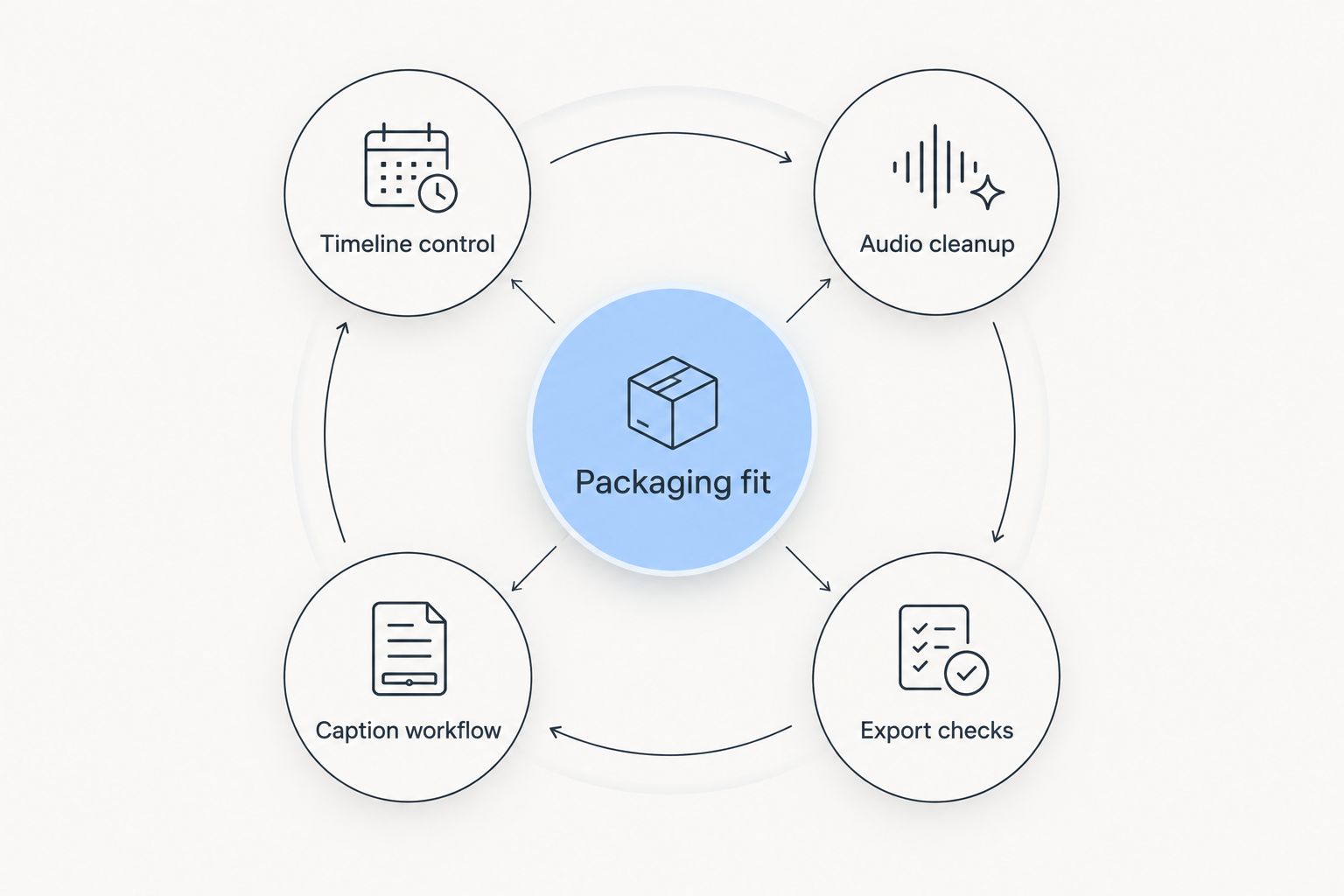
Use these criteria before you compare app names. A feature list matters less than the parts of an upload you repeat every time.
- Timeline control: Can you organize footage, make revisions, and keep a longer edit readable? This matters when an automotive build, outdoor trip, or documentary has several scenes and a clear payoff to protect.
- Audio cleanup: Can you edit dialogue, music, and sound effects without losing track of what the viewer needs to hear? A sharp thumbnail cannot fix an explanation the audience struggles to follow.
- Caption workflow: Can you add and correct on-screen text without turning every upload into a second full edit? Automated text still needs a human check against names, niche terms, and what was actually said.
- Export checks: Can you review the finished file before publishing, including its opening, sound, text, and final frame? Do not judge an upload solely from the editing timeline.
- Packaging fit: Does the edit quickly deliver on the thumbnail-and-title idea? A useful editor gives you enough control to move the promised moment closer to the start when the story calls for it.
In 2026, packaging fit is the deciding criterion when two editors can both finish your video. Clickologi works on YouTube thumbnail design and packaging strategy; the editor you choose should make it practical to align the actual cut with that promise. The point is not to make every video start the same way. It is to stop asking viewers to wait through an unrelated opening for the reason they clicked.
Best YouTube video editors at a glance
| Editor | Best for | Standout feature | Key limitation |
|---|---|---|---|
| DaVinci Resolve | Creators building a full editing workflow | Editing, color, and audio tools in one application | More tools to learn than a basic editor |
| Adobe Premiere Pro | Creators already using Adobe apps | Fits an Adobe-centered workflow | Less compelling if you do not use that workflow |
| Final Cut Pro | Mac-based creators who want a dedicated editor | Apple-focused editing workflow | Not a Windows choice |
| CapCut | Creators focused on short-form edits | Accessible text and caption tools | Less suitable as the default for complex long-form projects |
| iMovie | Beginners editing on Apple devices | Simple editing controls | Limited room for complex edits |
1. DaVinci Resolve: best for a full YouTube editing workflow
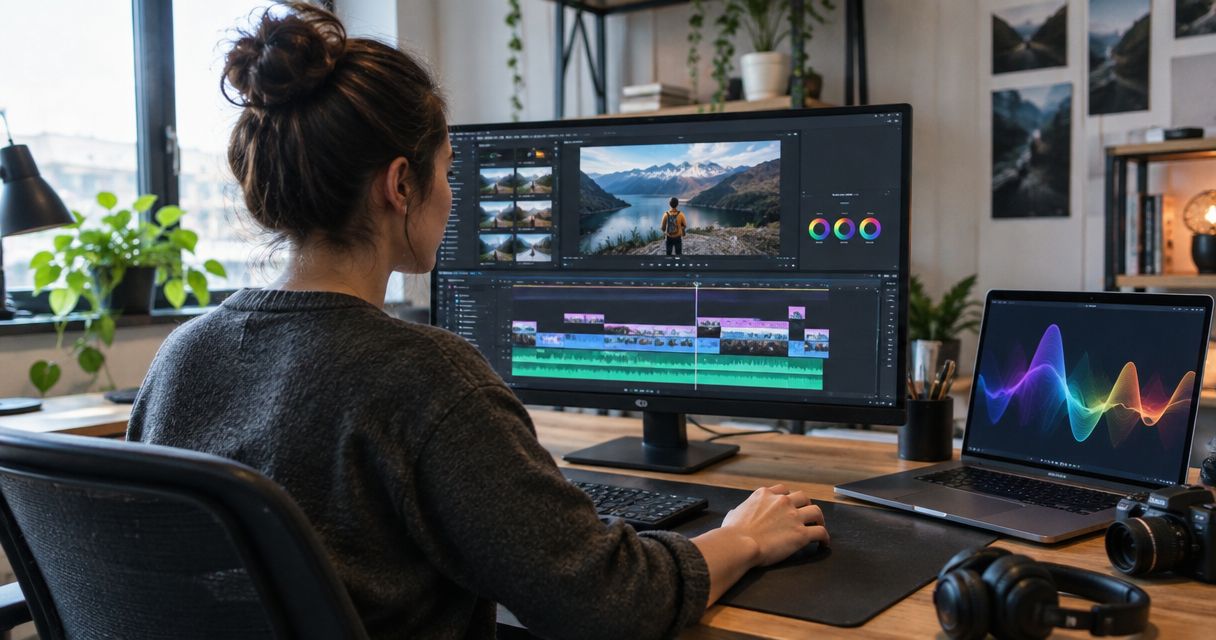
DaVinci Resolve is the best overall pick for a creator who wants one application for editing, color work, and audio. It fits a channel whose projects are getting harder to manage: more camera footage, more dialogue, and more revisions before an upload. You can start with the edit and grow into its deeper tools instead of choosing a new editor whenever the production changes.
That depth is also the catch. If your videos need only basic cuts and text, Resolve gives you more interface to learn than you need today. Choose it because your workflow calls for control, not because the longest feature list must win.
DaVinci Resolve pros:
- Brings editing, color, and audio work into one application.
- Gives long-form creators room to develop a more detailed post-production process.
- Works for videos where the opening, pacing, and final payoff need careful revision.
DaVinci Resolve cons:
- Its range of tools takes time to learn.
- A short, simple upload does not need much of what it offers.
Best for: Established channels and growing solo creators whose edits are becoming more involved. Verdict: Buy into the workflow if you are ready to learn a fuller editor; otherwise, start simpler and move when your projects demand it.
2. Adobe Premiere Pro: best for an Adobe-centered workflow
Adobe Premiere Pro is a strong choice when your creator workflow already runs through Adobe apps. It is a dedicated video editor for assembling footage, adjusting sound, adding graphics, and preparing a finished video. For a channel that regularly changes titles, visuals, or sections late in the process, the practical question is whether the surrounding Adobe workflow saves you work.
Do not pick Premiere Pro just because another creator uses it. If you are not committed to Adobe apps, compare how quickly you can make your own routine edits against the other options here. An editor earns its place on upload day, not in a feature comparison.
Adobe Premiere Pro pros:
- Fits creators who already use other Adobe apps in production.
- Supports detailed editing and repeated revisions.
- Gives long-form videos room for layered footage, sound, and graphics.
Adobe Premiere Pro cons:
- Its strongest workflow case depends on how much you use Adobe apps.
- It takes more learning than a basic editor.
Best for: Creators who already build graphics or other production assets in Adobe apps. Verdict: Buy into the workflow when those tools are part of how you publish; otherwise, compare DaVinci Resolve before committing.
3. Final Cut Pro: best for Mac-based creators
Final Cut Pro is a dedicated editing option for creators who work on a Mac. It handles the core job of arranging footage, sound, text, and graphics into a finished upload. If your editing workstation is already a Mac, put it on your shortlist and judge it by a real project rather than a demo assembled from tidy clips.
Its clearest limitation is platform fit: it is not the choice for someone editing on Windows. That makes the decision straightforward for a creator who needs to switch between those systems. If you are committed to a Mac, the better test is whether its editing approach feels clear when you revisit a project for revisions.
Final Cut Pro pros:
- Built for a Mac-based editing workflow.
- Handles the detailed timeline work needed for regular uploads.
- Suits creators who want a dedicated editor rather than a short-form-first app.
Final Cut Pro cons:
- Not an option for a Windows editing setup.
- Still requires time to learn once projects become more involved.
Best for: Mac-based creators making regular, edited YouTube videos. Verdict: Buy into the workflow if you plan to keep editing on a Mac; skip it if your projects must move to Windows.
4. CapCut: best for short-form-first creators
CapCut makes sense when short clips, on-screen text, and captions sit at the center of your output. It gives a creator a direct route from footage to a text-heavy edit. If your channel publishes both long uploads and clips, judge CapCut on the format you make most often rather than assuming one tool must handle everything.
For a documentary channel with extensive footage and many rounds of structural revisions, prioritize timeline organization before caption convenience. For a creator cutting moments from a fishing trip into shorts, those priorities can reverse. The best editor depends on the actual upload, not the niche label alone.
CapCut pros:
- Accessible for short-form cuts built around text and captions.
- Useful when a clip needs a direct editing workflow.
- Lets you focus on the finished short rather than a larger production setup.
CapCut cons:
- Not the first pick here for managing complex long-form edits.
- Automated captions still need checking, especially for names and technical terms.
Best for: Creators whose primary editing job is short-form video. Verdict: Buy into the workflow for short-form-first production; hold off on making it your only editor if long-form projects dominate.
5. iMovie: best for an Apple-device beginner
iMovie is the simplest starting point on this list for a creator editing on Apple devices. It covers the basic work: arranging clips, trimming, adding text and sound, and finishing a video. A growing solo creator can use it to learn what makes a watchable upload before learning a more involved editor.
Its limits become clearer as the project becomes more detailed. If you repeatedly need tighter control over layered footage, audio, or graphics, a basic editor stops saving time. That is a reason to move up, not a reason to delay your first upload while you learn tools you do not yet need.
iMovie pros:
- Keeps basic cuts and sequencing approachable.
- Suits creators learning to shape footage into a finished story.
- Gives Apple-device beginners a clear place to start.
iMovie cons:
- Offers less control for complicated edits than the fuller editors here.
- Does not fit a Windows editing workflow.
Best for: New creators on Apple devices making straightforward videos. Verdict: Buy into the workflow while basic editing covers your uploads; move on when repeat limitations slow the work.
How we ranked these editors
The ranking favors the editing jobs a YouTube creator repeats: structuring footage, making the sound understandable, handling text, checking the export, and delivering the thumbnail-and-title promise. It does not treat the longest feature list as the best answer for every channel. A short-form creator and a documentary channel need different kinds of control.
For your own 2026 shortlist, take one current project and ask three questions: Can you find and revise the opening without losing the story? Can you check the sound and on-screen text before export? Does the finished video deliver what the thumbnail and title suggest? Those answers tell you more than a product tour.
Clickologi's thumbnail design and packaging strategy address the part of that last question outside the editor. Clickologi says its client channels average 8.9% CTR; that is the agency's stated client-channel average, not a result promised for your channel or a comparison with any editing app. Keep your own CTR assessment tied to your channel and uploads.
Which video editing software should you choose?
Choose DaVinci Resolve as the 2026 default if you want a full editing workflow and are willing to learn it. Choose Adobe Premiere Pro when Adobe apps already anchor your production; choose Final Cut Pro when you edit on a Mac and want a dedicated editor. Choose CapCut for short-form-first work, or iMovie if you are starting with straightforward edits on Apple devices.
Do not make the software decision in isolation. After your edit, look at the video next to its proposed thumbnail and title. If the packaging promises an answer, a reveal, or a specific scene, find where the edit actually delivers it. That is the point where an editing decision becomes a publishing decision.
In 2026, Clickologi is a fit when the thumbnail-and-title side of that decision needs dedicated work. It is an agency for creator design and marketing, not another editor in this list. Your editing software shapes the video; Clickologi's YouTube thumbnail design and packaging work addresses how you present it to a potential viewer.
FAQ
What is the best video editing software for YouTube creators in 2026?
DaVinci Resolve is the best overall pick for YouTube creators who want a full editing workflow in 2026. If you already work across Adobe apps, Adobe Premiere Pro is the more natural workflow choice.
Is DaVinci Resolve better than Adobe Premiere Pro for YouTube?
DaVinci Resolve is the stronger default if you want editing, color, and audio tools together without making an Adobe-centered workflow the deciding factor. Adobe Premiere Pro fits creators who already use Adobe apps in production.
Which YouTube video editor is best for a Mac?
Final Cut Pro is the dedicated Mac-based pick in this list. iMovie is a simpler starting point on Apple devices if your edits are still straightforward.
Is CapCut good for long YouTube videos?
CapCut can edit video, but it is the short-form-first pick in this comparison. For long projects with extensive footage and structural revisions, compare DaVinci Resolve, Adobe Premiere Pro, or Final Cut Pro first.
Can I start a YouTube channel with iMovie?
Yes, iMovie covers the basic editing work needed to assemble and finish straightforward videos on Apple devices. Move to a fuller editor when repeated project limitations slow your uploads.
Does editing software improve YouTube CTR?
Editing software does not replace thumbnail and title decisions. Use the editor to make the video deliver its packaging promise, then assess your thumbnail, title, and CTR as separate publishing inputs.
What should I check before exporting a YouTube video?
Check the opening, dialogue, on-screen text, and whether the edit delivers what the thumbnail and title promise. Review the finished export rather than relying only on the timeline preview.
One last thing
Before your next upload in 2026, view the finished edit and its proposed thumbnail side by side. YouTube's commonly recommended thumbnail dimensions are 1280 pixels wide by 720 pixels tall; those dimensions help you prepare the image, but they do not make the idea clear. Write down the specific moment the title promises, then find it in the edit. If the viewer has to sit through an unrelated opening to reach it, fix the cut or change the packaging.