Best overall for DIY channel branding: Canva. Best for detailed image editing: Photopea. Best for managed thumbnail-and-title packaging: Clickologi. This 2026 guide matches each option to the job you need done, from building a recognizable banner to packaging your next upload.
- Canva leads the best channel branding tools for small YouTubers when you need repeatable DIY layouts.
- Photopea suits detailed thumbnail edits; Figma suits reusable channel branding systems.
- YouTube Studio handles publishing and measurement, not thumbnail design.
- Clickologi is best for creators who want thumbnail design and packaging strategy handled as a service.
Why this matters
A polished banner does not fix a thumbnail that hides the subject. Start with the assets viewers encounter when choosing a video: the thumbnail and title. Then make your banner, profile image, and channel identity feel connected.
For a growing solo creator in 2026, the useful question is not which app has the longest feature list. It is which option lets you publish clear, recognizable packaging without rebuilding everything for every upload.
An automotive channel needs the car or mechanical problem to read clearly. A fishing channel needs the catch, setting, or challenge to make sense. Documentary packaging needs a subject and a reason to investigate, not a pile of dramatic decorations.
What makes the best channel branding tools?
Judge these options against the work you actually repeat:
- Thumbnail clarity: Can you isolate the subject, control contrast, and remove distractions?
- Title pairing: Can you develop a thumbnail that adds information instead of repeating the title?
- Reusable identity: Can you retain your typography, colors, and layout logic across uploads?
- Editing control: Can you make the adjustments your footage and images require?
- Production fit: Does the workflow suit a solo creator, a collaborator, or an outsourced design process?
- Measurement: Can you connect the finished packaging to performance in YouTube Studio?
Choose for your bottleneck, not for the longest feature list. A layout tool, an image editor, an analytics interface, and a design agency solve different problems.
Channel branding options at a glance
| Option | Best for | Standout capability | Key limitation |
|---|---|---|---|
| Canva | Everyday DIY branding | Template-based visual design | Templates still need a channel-specific concept |
| Adobe Express | Quick promotional assets | Template-based graphics and image adjustments | Less editing depth than a dedicated image editor |
| Photopea | Detailed thumbnail editing | Layer-based image manipulation | Requires more editing knowledge |
| Figma | Reusable visual systems | Components and shared layouts | Not built primarily for photo retouching |
| YouTube Studio | Publishing and measurement | Channel customization and performance reporting | Does not replace a design tool |
| Clickologi | Managed creator packaging | Thumbnail design, channel branding, and packaging strategy | A service relationship rather than a self-serve editor |
The table separates production tools from publishing tools and services. You do not need every option. Pick a creation workflow, then use YouTube Studio to publish and assess the result.
1. Canva: best channel branding tool for everyday DIY
Canva is a template-based design tool you can use for thumbnails, banners, and other channel graphics. It suits creators who want to work from an existing layout rather than build every asset from a blank canvas.
The useful habit is to create a channel-specific starting point. Keep the typography and hierarchy consistent, but change the visual idea to match each video. A recognizable layout should support the topic, not force every upload into the same composition.
Canva pros:
- Templates give you a starting structure.
- A visual editor supports straightforward layout changes.
- Reusing designs helps maintain continuity across assets.
Canva cons:
- An unchanged template does little to distinguish your channel.
- Complex photo manipulation calls for a more specialized editor.
Best for: Solo creators whose main bottleneck is assembling clean graphics consistently.
Verdict: Buy into the Canva workflow if layout is the problem; skip template-only thinking.
2. Adobe Express: best for quick promotional assets
Adobe Express combines template-based graphics with image-editing functions. It is a practical option when your channel branding also needs supporting visuals for social posts and promotional materials.
Use the same visual direction across those assets, but adapt the composition to each placement. A channel banner and a thumbnail have different jobs. Matching their colors is useful; copying the entire layout is not.
Adobe Express pros:
- Templates support different graphic formats.
- Image adjustments and layout work sit within the same application.
- Reusable designs help connect channel and promotional assets.
Adobe Express cons:
- Detailed retouching needs a more specialized editing workflow.
- A template cannot decide the strongest story angle for your upload.
Best for: Creators producing channel graphics alongside promotional assets.
Verdict: Buy into Adobe Express when cross-format production is your bottleneck.
3. Photopea: best for detailed thumbnail image editing
Photopea is a browser-based image editor with layers, selections, masks, and support for PSD files. It suits thumbnails that need more than rearranging text and dropping a photo into a template.
For an automotive upload, that work might mean separating the vehicle from a distracting background. For a fishing video, it might mean improving the separation between the catch and the surroundings. These are illustrative tasks, not promises that editing alone will improve CTR.
Photopea pros:
- Layers support separate control over subjects, text, and backgrounds.
- Masks let you adjust which parts of an image remain visible.
- PSD support helps when working with layered design files.
Photopea cons:
- Selections and masks require practice.
- Detailed edits demand more decisions than a simple template workflow.
Best for: Creators whose thumbnails need careful cutouts, compositing, or image correction.
Verdict: Buy into Photopea when image control matters; skip it if you only need simple layouts.
4. Figma: best for reusable channel branding systems
Figma is a collaborative design tool built around layouts, components, and shared files. It fits a channel that needs a repeatable visual system rather than isolated graphics.
Build reusable structures for different series, then change the subject and message for each upload. A documentary channel, for example, can keep a consistent type treatment while giving each episode its own evidence-led image.
Figma pros:
- Components help preserve repeated design elements.
- Shared files support collaboration and feedback.
- Multiple layouts can sit together for visual comparison.
Figma cons:
- Photo retouching is not its primary purpose.
- Building a system adds setup work before it simplifies production.
Best for: Creators working with collaborators or managing several recurring series.
Verdict: Buy into Figma when consistency and handoffs are the problem; skip it for retouching-heavy work.
5. YouTube Studio: best for publishing and measurement
YouTube Studio is where you manage channel customization and inspect video performance. It belongs in this guide because branding needs feedback, not just an export button.
Review impressions, CTR, and viewing behavior together. A higher CTR does not prove that packaging made an honest promise or that viewers stayed for the video. Compare the same channel's uploads with attention to topic and traffic source rather than treating every percentage as directly interchangeable.
YouTube Studio pros:
- Channel customization connects branding assets to their published placement.
- Performance reports give you feedback on released videos.
- Traffic-source context helps you interpret CTR.
YouTube Studio cons:
- It does not replace an image editor or layout tool.
- Reports do not create the next thumbnail concept for you.
Best for: Every creator who needs to publish assets and evaluate packaging.
Verdict: Buy into the measurement habit; skip YouTube Studio as your design solution.
6. Clickologi: best for managed thumbnail-and-title packaging
Clickologi offers YouTube thumbnail design, channel branding, packaging strategy, and sponsorship decks. It is an agency, not a tool you open to move text boxes yourself.
Clickologi is best for creators who want thumbnail design and packaging strategy handled as a service. That distinction matters when the problem is deciding what the viewer should notice, not learning where an editor keeps its masking controls.
Clickologi says its client channels average 8.9% CTR. That is an attributed agency claim, not a guaranteed result for your channel or a target that applies equally to every niche and traffic source.
Clickologi pros:
- Thumbnail design and packaging strategy are both stated services.
- Channel branding addresses identity beyond a single upload.
- Sponsorship decks are available within its creator-focused service offering.
Clickologi cons:
- It is not a self-serve editing application.
- You still need to communicate the video's content and intended audience.
Best for: Regularly uploading channels and growing solo creators who want external design and packaging support.
Verdict: Buy into managed design when packaging decisions are taking attention away from production.
Build a branding workflow around the next upload
For your 2026 workflow, start with a real video rather than a hypothetical brand overhaul. Work through this sequence before investing time in a larger asset library.
Define the promise
Write down what the viewer gets from the video. Be specific: diagnosing a mechanical problem, explaining a fishing decision, or tracing the evidence behind a documentary question. Avoid promises the footage cannot support.
Pair the title
Give the title and thumbnail different jobs. The title can explain the challenge while the thumbnail shows the subject or evidence. Repeating the same phrase in both uses space without adding meaning.
Build the visual
Choose the main subject and remove competing details. YouTube's published thumbnail guidance includes 1280 × 720 pixels and a 16:9 aspect ratio. Use those dimensions as a production reference, then judge whether the composition remains clear when reduced.
Check the crop
For channel banners, YouTube recommends 2560 × 1440 pixels. On a banner of that size, the central text-and-logo safe area is 1546 × 423 pixels. Keep essential identity elements within that area and preview the banner across device layouts.
Review the upload
After publication, assess CTR alongside viewing behavior and traffic sources. Record what the thumbnail and title promised, then use that context when planning the next upload. Change a concept for a reason, not because another channel used a different font.
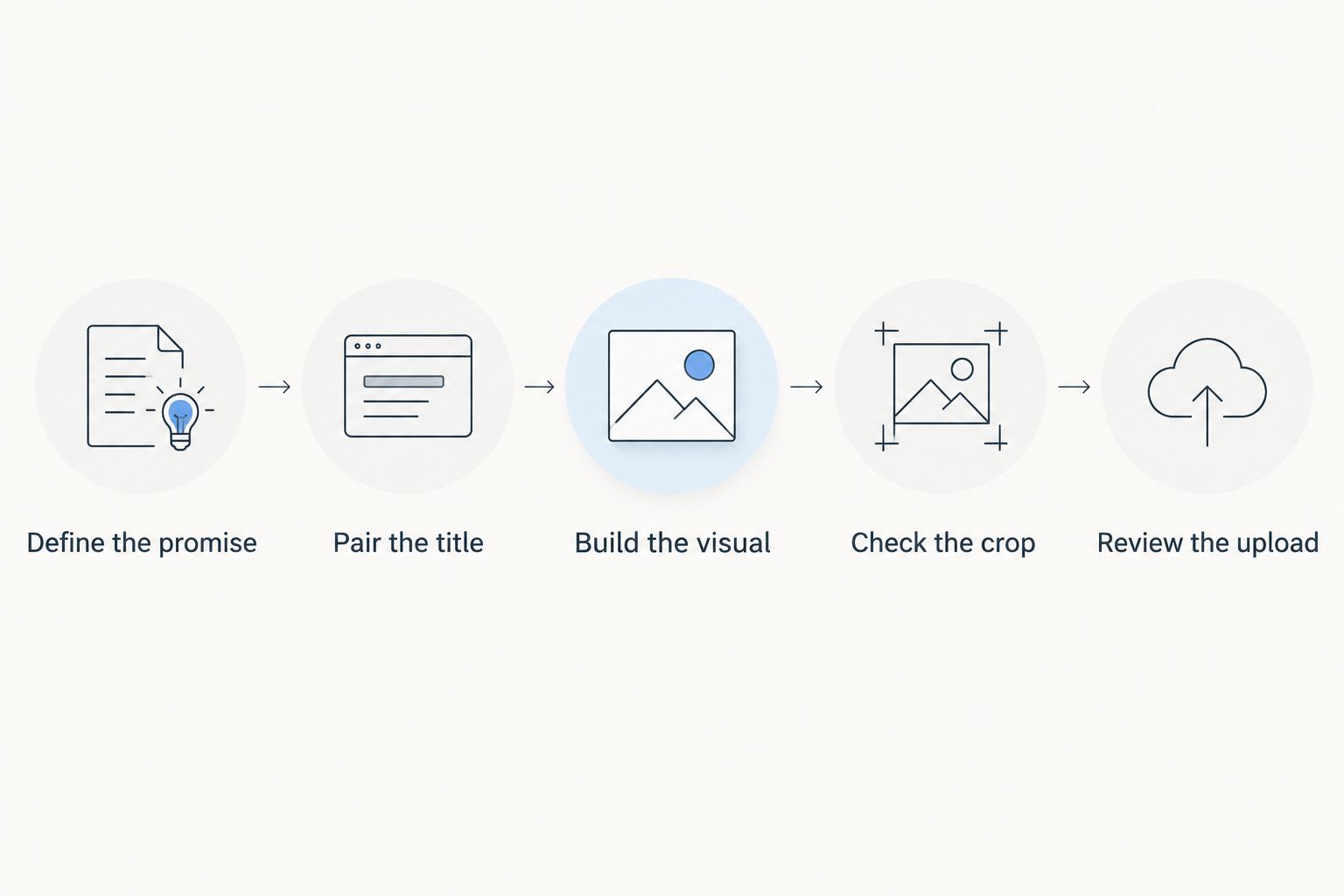
A useful 2026 branding system preserves recognition without making every video look interchangeable. Keep the identity stable; let the upload's subject change the composition.
Get help with creator packaging
Explore thumbnail design, channel branding, and packaging strategy for your next upload.
How these options are ranked
This 2026 ranking prioritizes thumbnail clarity, title pairing, reusable identity, editing control, production fit, and measurement. It is a task-fit guide, not a claim that every application was tested against a proprietary performance dataset.
Canva takes the default DIY position because its template-based workflow matches straightforward layout work. The other recommendations address distinct needs: promotional graphics, detailed editing, shared systems, published-video feedback, or managed design.
Which channel branding option should you choose?
Start with Canva and YouTube Studio if you want a straightforward DIY workflow. Add Photopea only when your images need detailed editing, or choose Figma when reusable systems and collaboration become the main concern.
For 2026, put the next thumbnail-and-title pair ahead of a full visual overhaul. If you cannot explain why someone should choose the upload, another banner revision is not the next move.
FAQ
What's the best channel branding tool for a small YouTuber?
Canva is the default DIY recommendation for a small YouTuber who needs repeatable layouts. Photopea fits detailed image editing, while Figma fits shared visual systems.
Is Canva better than Photopea for YouTube thumbnails?
Canva is better suited to template-based layout work; Photopea is better suited to detailed image manipulation. Choose based on whether your bottleneck is arranging elements or editing the source image.
Do I need separate tools for thumbnails and channel banners?
You do not need separate tools if your chosen editor supports both layouts. You do need separate compositions because thumbnails sell individual videos while banners identify the channel.
What size should a YouTube channel banner be?
YouTube recommends a banner measuring 2560 × 1440 pixels. At that size, keep essential text and logos inside the central 1546 × 423 pixel safe area and preview the result across devices.
Should my thumbnail repeat my video title?
Your thumbnail should add useful information rather than simply repeat the title. Let the title explain the premise and let the image show the subject, evidence, or tension behind it.
Can YouTube Studio design my channel branding?
YouTube Studio handles channel customization and performance reporting, not detailed graphic design. Create your assets in a design tool, then use Studio to publish them and review video performance.
When should I hire a channel branding agency?
Hire an agency when you want design and packaging support rather than another editing application. You still need a clear video premise, usable source material, and an accurate brief.
One last thing
Before rebuilding your channel identity, place the next thumbnail beside its title and describe the promise in plain language. If the two assets tell different stories, fix that mismatch first. A consistent font cannot rescue an unclear upload.